On this page
- Getting Started
- Organizing Your Collection
- Adding Libraries
- Your First Scan
- Reading Your Comics
- Editing Individual Issues
- Locking Metadata
- Tags
- Filtering Your Library
- Publishers & Crossovers
- Reading Settings
- Data Management & Backups
- Contributing to the API
- Streaming to Longbox Reader
- Troubleshooting
- Contact Support
- Report an Issue / Feature Request
1. Getting Started
Digital Longbox is a personal comic collection manager. It scans the CBZ, CBR, and PDF files you already have, figures out the series and issue number for each one, and organizes everything into a clean, browsable library — without moving, renaming, or altering your original files.
The typical setup is three steps:
- Add a library — point Digital Longbox at the top-level folder where your comics live.
- Run a scan — Digital Longbox reads your files and identifies series, issue numbers, and metadata.
- Read, or turn on the server — read right in the app, or enable Server mode to make your library available to Longbox Reader on your phone or tablet.
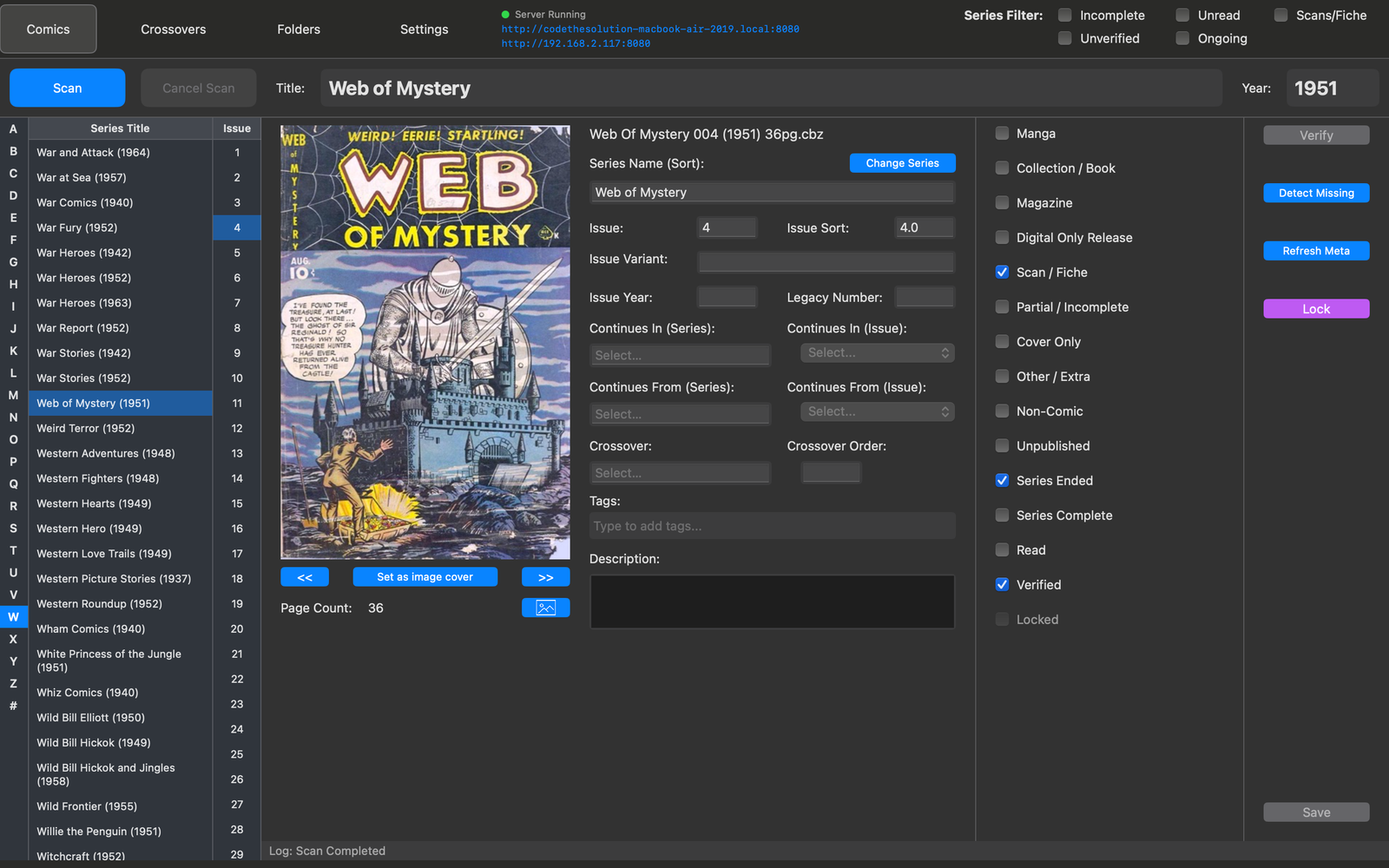
About the covers you see in these screenshots: every comic pictured on this page is a public domain title from the Comic Book Plus archive — a free, volunteer-run library of tens of thousands of legally public domain comics. We're grateful for the collection, and if you like what you see here, it's well worth exploring (and supporting) directly.
2. Organizing Your Collection
Digital Longbox reads your existing folder structure to figure out how your comics are organized, so a little bit of consistent naming goes a long way toward accurate matching.
One series per folder
Keep each series in its own folder, with the issue files directly inside it. A folder name that includes the series name and, ideally, its start year in parentheses gives the most reliable match:
Amazing Spider-Man (1963)/Saga (2012)/
Digital Longbox pulls the four-digit year out of the parentheses automatically and uses the remaining text as the series title.
Folder and file naming symbols
Because colons ( : ) and slashes ( / ) can't be used in folder or file names on most systems, use these substitutions instead — Digital Longbox converts them back automatically when it builds the series name:
| Type this | Digital Longbox reads it as | Example |
|---|---|---|
- (space-hyphen-space) | Colon : | Batman - Year One → Batman: Year One |
-- (space-double hyphen-space) | Slash / | Cloak -- Dagger → Cloak / Dagger |
Excluding files and folders
Add (exclude) anywhere in a file or folder name and Digital Longbox will skip it entirely during scanning — the check is case-insensitive, so (Exclude) works too.
- Exclude a single file:
Amazing Spider-Man 042 (exclude).cbz - Exclude an entire folder and everything inside it:
Convention Sketchbooks (exclude)/
Files and folders that begin with a dot (hidden files) are also skipped automatically, along with a couple of known library-manager marker folders so they don't get scanned as comics.
Tip: Only files with a .cbz, .cbr, or .pdf extension are picked up during a scan — anything else in a library folder is ignored automatically, so you don't need to exclude non-comic files like cover art or notes unless you'd prefer they weren't visible in your folder browser at all.
3. Adding Libraries
A library is simply a top-level folder that Digital Longbox scans. You can add more than one — for example, separate libraries for different drives or different collections.
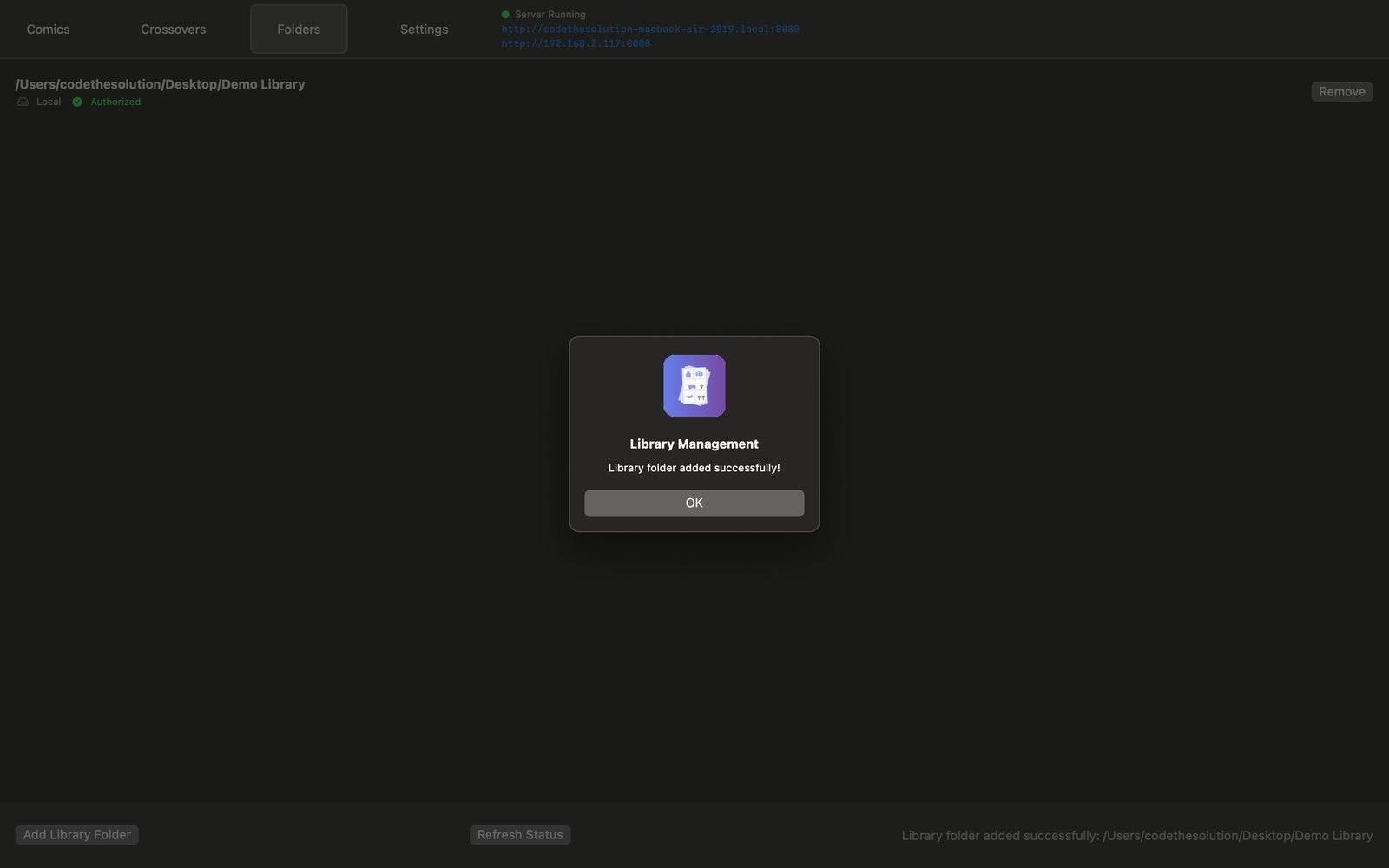
- Open Libraries from the main window.
- Click Add Library Folder.
- Choose the top-level folder that contains your series folders.
- Digital Longbox will remember this location and include it in future scans.
A note on macOS network shares (SMB): we don't recommend pointing a library at an SMB network share on macOS. SMB access from macOS can be noticeably slower than a local or externally-attached drive, and connections can drop mid-scan on larger collections — which may interrupt scanning or thumbnail generation partway through. For the most reliable experience, use a locally attached drive (internal, USB, or Thunderbolt) wherever possible.
4. Your First Scan
Before running your very first scan, take a minute to check your settings — a couple of choices are much easier to get right up front than to change after your whole library has already been matched.
Review the Comic Matching setting
Open Settings → Comic Matching and look at Enable metadata matching API. This is on by default, and it's what allows Digital Longbox to automatically identify series and issue numbers instead of leaving everything for you to enter by hand.
When this setting is enabled, a fingerprint (a hash) of each comic file — not the file itself — is sent to the matching service to look up series and issue metadata. No personally identifiable information is included in that request.
If you'd rather not send file fingerprints to the matching service, turn this off before your first scan. You can turn it back on later, but any comics already scanned while it was off will need a rescan to be matched. Please read the Privacy Policy before your first scan if you want the full detail on what is and isn't transmitted.
Why the matching service matters: automatic series and issue matching is the difference between a library that organizes itself and one you have to type in by hand, one comic at a time. The service improves over time because of the anonymous fingerprints and metadata contributed by scans — if you keep it enabled, your scans help make matching better for everyone, including future you.
Run the scan
- Go to Libraries and confirm the folders you want scanned are listed.
- Click Scan. Digital Longbox will walk through each folder, identify comic files, and match series and issue metadata.
- Larger collections — especially on a first scan — can take a while, particularly over a network share. Progress is shown as it works.
- Once the scan completes, your library grid will populate with covers, series names, and issue numbers.
5. Reading Your Comics
Double-click a comic's thumbnail in the library grid to open it in the built-in reader.
Page navigation
- Click anywhere on the page to show or hide the reader's controls.
- Use the ‹ / › buttons to move to the previous or next page — each dims when there's nowhere further to go.
- The page counter (e.g.
12 / 22) shows where you are, and the Jump to: picker lets you skip straight to any page by number. - Click the ✕ in the top corner to close the reader, or press Esc.
Keyboard shortcuts
| Key | Action |
|---|---|
Space | Next page |
Delete / Backspace | Previous page |
Esc | Close the reader |
| Arrow keys | Scroll the current page |
Cmd/Ctrl + + | Zoom in |
Cmd/Ctrl + - | Zoom out |
Zoom
The − / + buttons in the controls overlay zoom in and out in steps, from 50% up to 500%, with the current percentage shown next to them. Click Fit to snap back to the page fitting the window. On a Mac trackpad, pinch-to-zoom also works directly on the page.
Your place is saved automatically
Digital Longbox remembers the page you were on, so closing the reader and reopening the same issue later picks up right where you left off. Reaching the last page marks the issue as read automatically — you don't need to mark it by hand.
PDFs open either page-by-page or as one continuous scroll, depending on the Continual Scroll setting (see Reading Settings below) — CBZ/CBR comics always open page-by-page. A PDF page also fits itself automatically: a portrait page fits to width, a landscape (spread) page fits to height.
6. Editing Individual Issues
Automatic matching gets most comics right, but a handful of situations need a human eye. Selecting a comic in your library grid opens its full metadata form and cover preview, where the following tools are available.
Change Series
Occasionally two different series share the same name and were released in the same year — a false match can land an issue in the wrong series. To move an issue:
- Select the issue and click Change Series, next to the Series Name (Sort) field.
- Pick an existing series from the list, or, if the correct series doesn't exist yet, enter a new series name and year to create one.
- Save. The issue moves to the series you picked or created.
Once you've moved the first issue into a new series, any other issue you place in the same folder will be associated with that new series automatically going forward — you only need to fix the first one.
Incorrect Thumbnail
By default, the cover thumbnail is generated from the first image in the archive (or the first page of a PDF). Depending on how a scanning group named its files, or how the archive itself is organized, that first image isn't always the actual cover.
- Use the << / >> navigation buttons beside the cover preview to step through the pages until you find the real cover.
- Click Set as image cover.
Gatefold Covers
Some comics use a cover image that spans a full gatefold — front and back cover in one wide image. The default thumbnail crops the center of that image, which isn't always the front cover.
- With the wide cover image displayed, click the small image icon next to Page Count to open the custom thumbnail tool.
- Drag the selection rectangle over the region you want to use — the front-cover portion of the gatefold.
- Click Save to generate a new thumbnail cropped to your selected region.
Refresh Meta
Metadata isn't re-checked against the matching service on every scan — only periodically, to keep scans fast. If you know the server-side record has been updated (for example, after contributing corrected data — see Contributing to the API) and don't want to wait, click Refresh Meta on the issue to request its current metadata immediately.
Detect Missing (experimental)
Click Detect Missing to have Digital Longbox poll the matching service for issues published in the selected issue's series that don't appear in your local collection — useful for spotting gaps to fill in later. This feature is still experimental.
Continues In / Continues From
Some long-running series were historically renumbered or relaunched, with the story continuing under a different title — Continues In and Continues From let you link that history together at the issue level:
- Continues In — set on the last issue of a title, pointing to the series (and specific first issue) the story continues in.
- Continues From — set on the first issue of the new title, linking back to the last issue of the series it continues from.
This data is stored so it's ready for continual reading across titles based on legacy numbering — but that reading behavior isn't implemented yet. For now, Continues In/From link the series in the metadata only.
7. Locking Metadata
If you edit a comic's metadata by hand — correcting a series name, fixing an issue number, adding your own notes — that custom data is submitted to the matching service for review. Some, all, or none of your changes may end up added to the shared database, depending on review.
Protect your edits: a future metadata refresh could overwrite the values you entered if the shared database doesn't yet reflect your change. To make sure that never happens, save your edits, then lock the issue. Locked issues are skipped by metadata refreshes and can't be edited again in the app until you unlock them.
- Open the comic and make your metadata edits (title, series, issue number, flags, etc.).
- Save your changes.
- Use the Lock control on the issue to mark it as locked.
Locking is per-issue, so you're free to lock only the comics where you've made changes you want to protect, and leave the rest open to future metadata refreshes.
8. Tags
Tags let you track things across issues that series and publisher metadata can't — most commonly, characters. Tag an issue with "Wolverine" every time he appears, and you can pull up every appearance in your collection at once, regardless of series or publisher.
- On an issue's metadata form, start typing in the Tags field.
- If the tag already exists, matching tags autosuggest as you type — select one rather than retyping it. Reusing an existing tag (rather than creating a near-duplicate) keeps your tag list consistent and useful.
- If it's a genuinely new tag, finish typing it and click the (+) button that appears to the right to add it to your tag list.
Consistency matters: because tags are freeform text, "Wolverine" and "wolverine" (or a stray typo) would otherwise be tracked as two different tags. Always check the autosuggest list first before typing out a tag you think you've already used.
Longbox Reader has its own Tags tab for browsing by tag on your phone or tablet — select a tag there to see every issue in your collection carrying it. See the Longbox Reader tab guide if you've hidden that tab and want it back.
Chronological sorting within a tag isn't implemented yet, since issue-year metadata in the matching database is still limited for many older titles.
9. Filtering Your Library
A row of checkboxes above your library grid lets you narrow the view down to exactly the issues you're looking for. They can be combined — for example, Unread and Ongoing together shows unread issues only from series that haven't ended.
| Filter | Shows issues where… | Useful for |
|---|---|---|
Incomplete | the Incomplete metadata flag is checked | Spotting an incomplete archive (e.g. a single story pulled from an anthology) that could be replaced with a complete copy later. |
Unverified | no match was found on the matching service | Finding issues where you could contribute metadata — see Contributing to the API. |
Unread | the Read metadata flag is unchecked | Tracking unread or partially-read comics in your collection. |
Ongoing | the Series Ended metadata flag is unchecked | Quickly finding series that are still ongoing. |
Scans/Fiche | the Scan/Fiche metadata flag is checked | Identifying scanned or microfiche copies that could be replaced with a proper digital copy later. |
Publisher | the issue belongs to the publisher or imprint you select | Limiting the grid to one publisher (or one imprint) at a time. |
The Publisher filter only narrows issues that already have Publisher/Imprint metadata entered (set from the fields below the issue cover — see Editing Individual Issues). An issue with no publisher assigned won't appear when filtering by any specific publisher.
10. Publishers & Crossovers
Publishers and Crossovers each have their own tab in the main navigation bar, alongside Comics — separate from the per-issue fields you set while editing a comic.
Publishers
The Publishers tab lists every publisher and imprint available — some downloaded automatically from the matching service as your library is scanned, others you can add yourself.
- Open the Publishers tab.
- Click Add Publisher to create a new publisher, or Add Imprint to add an imprint under an existing publisher.
Add the publisher (and imprint, if needed) here first. Once it exists in this list, it becomes available to pick from the Publisher/Imprint fields on an individual issue's metadata form.
Crossovers
The Crossovers tab lists every crossover event available, the same way — downloaded from the matching service or added locally.
- Open the Crossovers tab and click Add Crossover to create a new one.
- As with publishers, add the crossover here first — it then becomes available to assign to individual issues from the Crossover field on the metadata form, along with a Crossover Order value for reading sequence within the event.
Crossovers and their issues currently show up in Longbox Reader's Crossovers tab.
Continual reading through a crossover in its set sequence order isn't implemented yet — the order is stored and displayed, but reading doesn't yet chain automatically from one issue to the next across titles.
11. Reading Settings
Open Settings → General and look for the Reading section for these controls.
Continual Scroll
The Continual Scroll toggle switches how PDF comics are displayed: on, a PDF scrolls continuously like a long webpage instead of turning one page at a time. This only affects PDFs — CBZ/CBR comics always open page-by-page regardless of this setting.
Reading cache expiration
While you're reading, Digital Longbox keeps a rendered copy of each open issue's pages cached locally so turning pages is instant. Two settings control how long that cache sticks around before it's automatically cleaned up:
- Remove finished issue from cache after: how long to keep an issue's rendered pages once you've finished reading it (reached the last page) —
5 minutes,15 minutes(default),30 minutes, or1 hour. - Remove inactive issue from cache after: how long to keep an issue's rendered pages if you open it but don't finish it —
15 minutes,45 minutes(default),2 hours,6 hours,1 day,1 week,2 weeks, or1 month.
This cache clears itself automatically on these timers — there's no manual "Clear Cache" button for it, and it's separate from the cover thumbnail cache described next.
This same cache also serves pages to Longbox Reader when you're streaming over your home network (see Streaming to Longbox Reader) — pages already rendered here don't need to be re-extracted for your phone or tablet, so streaming feels faster too.
Reading a large omnibus or collected edition? Consider raising Remove inactive issue from cache after so a long volume you step away from mid-read doesn't get evicted and have to re-render from the beginning next time you pick it up.
Longer cache times mean the cache holds more on disk. This is usually no concern, but it's worth keeping in mind if you're reading several large volumes at once (for example, streaming a few omnibus editions to different devices simultaneously) on a drive with limited free space.
12. Data Management & Backups
Open Settings → Data Management to find where your collection's data lives and to back it up.
Where your data is stored
Digital Longbox keeps two things on disk: your database (every series, issue, and piece of metadata you've scanned or edited) and a cover thumbnail cache (the small preview images shown in your library grid). Neither one touches your original comic files.
- On macOS: the database file and the thumbnail cache both live inside the app's Application Support folder — the cache is a
cachesubfolder right alongside the database file, so the same Open Data Folder button gets you to both. - On Windows: the two are in separate folders (the database sits in the app's
LocalStatefolder; the thumbnail cache lives elsewhere, underLocalCache\Local). Data Management has a button for each: Open Data Folder for the database, and Open Thumbnail Cache Folder for the cache.
Backing up your collection
A full backup needs both the database and the cache folder — the database alone won't include your cover thumbnails.
- Open Settings → Data Management.
- Click Open Data Folder and copy the database file somewhere safe. On Windows, also click Open Thumbnail Cache Folder and copy that
cachefolder too — on macOS it's already right there alongside the database. - Alternatively, the Backup Database button saves a copy of just the database — remember it doesn't include the cache folder, so copy that separately (as above) if you want thumbnails included too.
Restoring your collection
- Launch Digital Longbox and open Settings → Data Management. Click Open Data Folder for the database, and — on Windows — Open Thumbnail Cache Folder for the cache (on macOS, it's the
cachesubfolder right there next to the database). - Quit Digital Longbox completely.
- Delete the current database file and
cachefolder from those locations. - Copy your backed-up database file and
cachefolder back into those same locations. - Relaunch Digital Longbox — your collection, metadata, and cover thumbnails are restored exactly as they were when you backed up.
Restoring replaces your current database and cache entirely. Any scans, edits, or lock changes made after the backup was taken will be lost — make sure you're restoring the backup you actually want before deleting the current files.
13. Contributing to the API
Digital Longbox's matching service is built from community contributions. Every issue that gets verified and added to the shared database makes matching more accurate for every other collector — including you, the next time you rescan or add new comics.
Why this matters: the database only grows through submissions from collectors like you. A series or issue that isn't recognized today may match instantly on a future scan, once enough verified data has been contributed and processed.
If Enable metadata matching API is turned on (see Your First Scan), every save sends a copy of your comic's metadata to the server. Submitted data is reviewed before it's added to the shared database, so it may take some time to appear — how long depends on how many other submissions are being processed at the same time.
Finding unmatched issues
To quickly see which comics in your collection haven't been matched to the server yet, check the Unverified checkbox at the top of the screen. This filters your library down to just the issues where metadata isn't yet available on the server.
Verifying an issue
- Filter to Unverified and navigate to the comic you'd like to contribute.
- Click Verify.
- Digital Longbox saves the comic's metadata locally and sends a copy to the server for processing.
- The issue is marked as submitted and will no longer appear in your Unverified list, even while it's still being reviewed.
Verifying is entirely optional — Digital Longbox works the same either way — but the more collectors who contribute verified metadata, the more reliable matching becomes for everyone on future scans.
14. Streaming to Longbox Reader
Once your library is scanned, you can make it available to the Longbox Reader companion app on your phone or tablet:
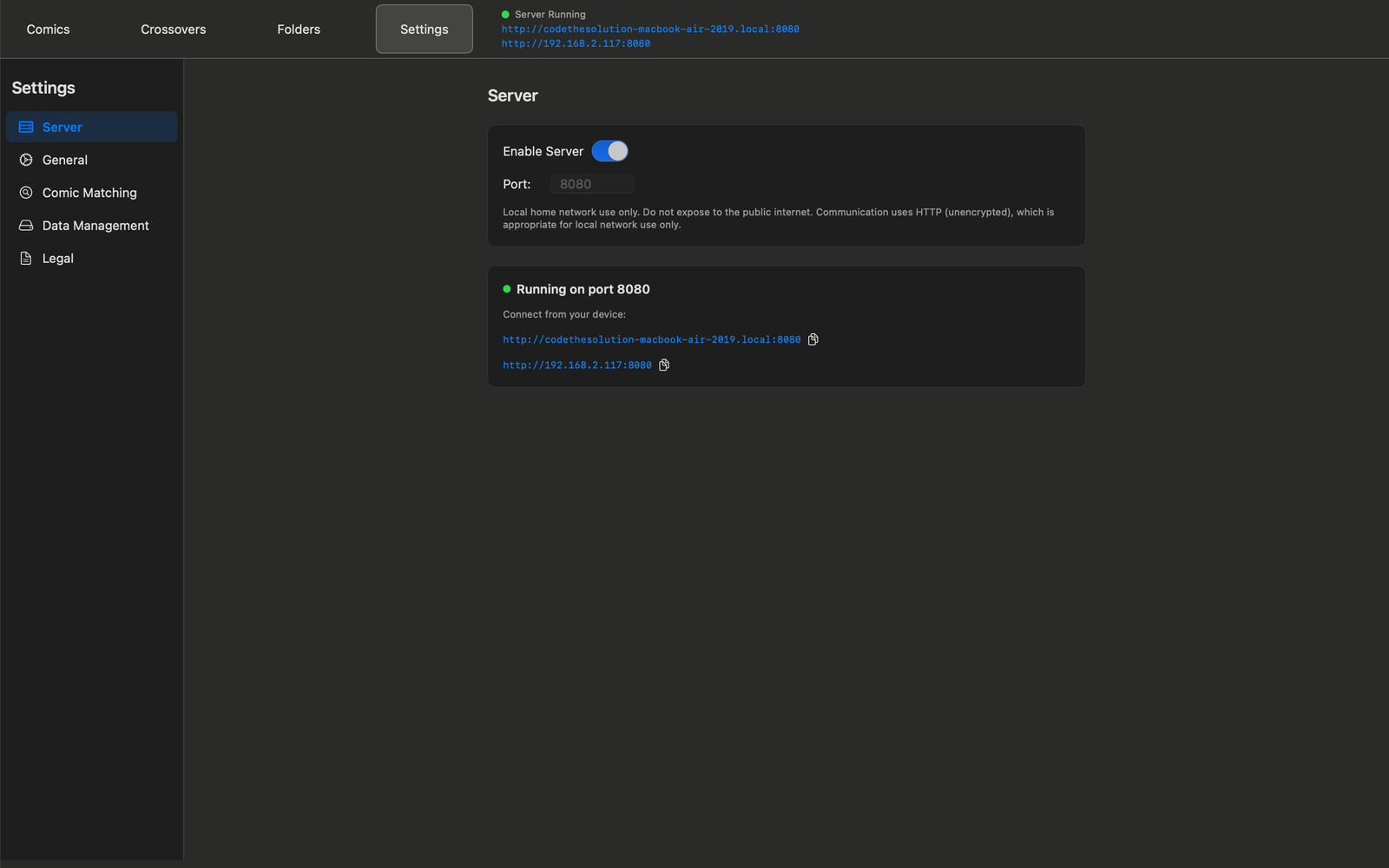
- Open Settings → Server.
- Turn on Enable Server. By default it runs on port
8080, but you can change this before starting the server if needed. - Open Longbox Reader on the same Wi-Fi network — it automatically discovers Digital Longbox and lists it as an available server. Tap it to connect; there's nothing to type. If it doesn't appear within a few seconds, tap Search Again in Longbox Reader.
The hostname and IP address Digital Longbox displays once the server is running aren't something you enter anywhere in Longbox Reader — they're shown for reference, and mainly useful for troubleshooting (for example, confirming that address loads in a web browser on the same network).
The server is designed for your home network only — communication uses plain HTTP, which is appropriate for a private home Wi-Fi network but should not be exposed to the public internet.
15. Troubleshooting
A comic isn't matching correctly
Double-check the folder naming — see Organizing Your Collection above. A missing or malformed year in parentheses, or a colon/slash that wasn't substituted, is the most common cause of a mismatch.
Longbox Reader can't connect to my server
Confirm both devices are on the same Wi-Fi network and that Enable Server is turned on in Digital Longbox. Longbox Reader discovers your server automatically — there's no address to type — so if it isn't showing up in Longbox Reader's server list, try Search Again there first. See the Longbox Reader connection guide for more.
Windows: the server shows as "running," but Longbox Reader still can't connect
This is almost always a firewall silently blocking the incoming connection — either Windows Defender Firewall or a separate third-party security suite — even though the server itself started without any error.
Why this is easy to miss: opening the server's address in a browser on the same Windows PC will often work even when every other device is blocked, because traffic to your own PC's address usually never crosses the network adapter a firewall inspects. The real test is connecting from another device — your phone or tablet — not from the PC itself.
If Enable Server is on but another device still can't connect, work through these in order:
- The first time the server starts, Windows needs one-time permission to open the network port. Digital Longbox requests this automatically and may briefly show a Windows administrator (UAC) prompt — accept it. This only happens once; later launches won't prompt again.
- If you have a third-party antivirus or security suite installed — Bitdefender, Norton, McAfee, Avast, Kaspersky, ESET, or similar — it runs its own firewall independently of Windows, and Windows-level permissions can't override it. Open that product's settings and add an allow rule for Digital Longbox, or for TCP port
8080(the default server port). - In that same antivirus app, check what type it thinks your current Wi-Fi network is. Security suites are typically far stricter about incoming connections on networks marked Public than on Home/Office or Private — set your home network to Home/Office if it isn't already, then restart the server.
- Confirm your phone or tablet and your PC are on the exact same network — not a guest Wi-Fi network, and not separate 2.4GHz/5GHz SSIDs, which some routers isolate from each other by default.
If Digital Longbox shows a warning dialog after starting the server that names a specific antivirus product, that's this exact issue — the fastest fix is to follow the guidance in that dialog directly. The dialog has a "don't show this again" option once you've resolved it, so it won't keep reappearing on future launches.
A scan seems to have stalled or stopped early
This is most often caused by a dropped connection to a network drive mid-scan. If you're scanning from an SMB share, see the note in Adding Libraries above.
16. Contact Support
Still stuck? Reach out and we'll help you sort it out.
17. Report an Issue / Feature Request
Found a bug, or have an idea that would make Digital Longbox better? Bugs and feature requests are tracked publicly so you can see what's already been reported.
- Search existing issues to see if it's already been reported.
- If not, report a bug or request a feature, and select Digital Longbox (macOS) or Digital Longbox (windows) from the app dropdown.